


Recording WhatsApp Voice Calls: A Guide for Various Devices
Record WhatsApp Voice Calls: WhatsApp always focuses on bringing a safe and secure environment to its millions of users so they can spark and use the app freely. This instant messaging application provides a host of exciting and intuitive features, which makes the application even more convenient and valuable. One such intuitive functionality is connecting to friends and family through voice or video calls. You can even send texts, photos, videos, voice notes, and much more.
Indeed, WhatsApp offers more convenience for real-time communication across other platforms. Still, sometimes it can be essential to record a WhatsApp call, whether for any meetings or group conference or whatever may be the reason. However, it takes a lot of work to record calls on WhatsApp. However, there is no such facility to record WhatsApp calls natively through WhatsApp. How you can record calls on WhatsApp here are tips to do that on Android, iPhone, Mac and Windows.
Recording a WhatsApp calls on Android, iPhone, Mac and Windows.
How To Record WhatsApp Voice Calls on Android device: Check Step by Step Guide
Although you can get the help of the built-in screen recorder, we have still managed to get another trick to record WhatsApp calls on your Android devices. Here’s how?
To record the WhatsApp calls, you first need to download the AZ recorder application from the Google Play Store, and now get started with the process provided below:
- Once you have installed the AZ recorder app, open it.

- Make a WhatsApp call and tap on the recorder option to start recording.

- Swipe down from the screen to open the notification panel.

- Select the Stop button to stop the recording.

How To Record WhatsApp Voice Calls on iPhone: Check Step by Step Guide
iPhone has a screen recording feature lets users record the screen and audio. It is the most effective and convenient method to record WhatsApp calls in just no time. Here are the steps mentioned below:
- Go to Settings and tap on the Control Center.

- Click on the “+” icon to add the screen recording feature.

- Make a WhatsApp call.
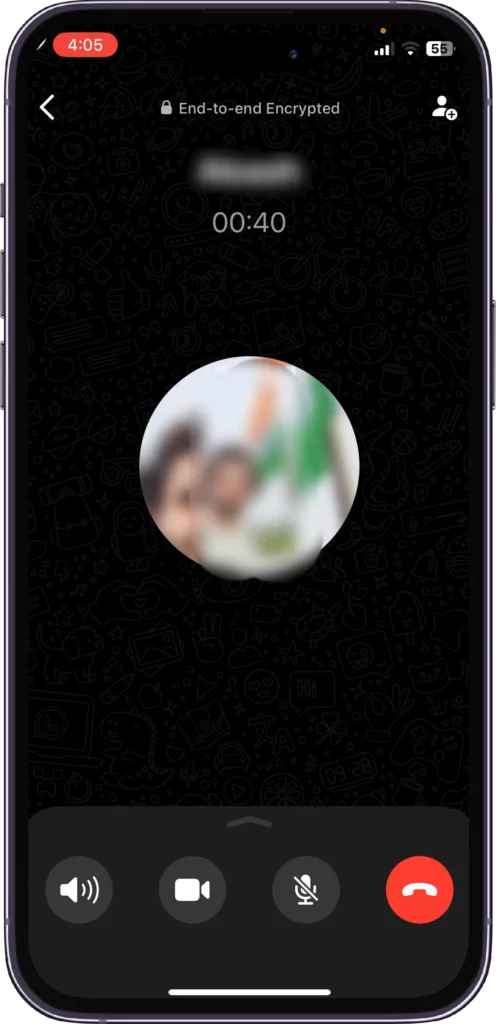
- Now swipe down from the top of the screen and select Screen Recording to turn it on.

- Once you have recorded the WhatsApp call, tap on the screen recorder again to stop the recording.
How To Record WhatsApp Voice Calls MacBook:
To record WhatsApp calls on Mac, Quick Time Player can be used. A quick-time player is the perfect option to record WhatsApp calls on a Mac. Also, without using any third-party tool, you can seamlessly record WhatsApp calls; here’s how:
- Open the Quick Time player and tap files.

- Now select the New screen recording option.

- Next, choose the down arrow next to the recording icon.
- Click on the small red circle to start the recording. It’s all up to you whether you want a specific area or an entire skin.

- To finish the process, press the stop button on the menu bar.

How To Record WhatsApp Voice Calls on Windows:
To record WhatsApp calls on your desktop/Windows, you can use the Bandicam, a screen recorder tool, an optimistic software tool used to record WhatsApp calls. Now follow the steps below:
- Open BandiCam on your PC.
- Tap on the Rectangle on a screen option.
- To record both computer sound and voice, tap default output device >> followed by your microphone device.
- Open WhatsApp on your Windows and make a call. Now, either click the recording button or press the F12 shortcut key.
- Now head to Home, video to play and check your captured recording.
FAQs: Record WhatsApp Voice Calls on Any Device
Where are WhatsApp voice call recordings saved?
The location of WhatsApp voice call recordings will vary depending on the device and call recorder app that you are using. On Android devices, recordings are typically saved to the device’s internal storage or SD card. On iOS devices, recordings are typically saved to the Files app.
How can I share WhatsApp voice call recordings?
To share WhatsApp voice call recordings, you can use a file sharing app or service, such as Google Drive, Dropbox, or iCloud. You can also send recordings via email or text message.
Is it legal to record WhatsApp voice calls?
The legality of recording WhatsApp voice calls varies depending on the jurisdiction in which you are located. In some jurisdictions, it is legal to record WhatsApp voice calls with the consent of all parties involved. In other jurisdictions, it is illegal to record WhatsApp voice calls without the consent of all parties involved.
How can I record WhatsApp voice calls on iOS?
There is no built-in way to record WhatsApp voice calls on iOS. However, you can use a third-party call recorder app to record WhatsApp voice calls. One popular option is the Call Recorder: Cube ACR app.
Source: Rmupdate.com